Family schedules have become more complicated than ever. Between work meetings, school activities, doctor's appointments, sports practices, and family events, keeping everyone on the same page can be a challenge.
Google Calendar has become a popular solution for busy families because it makes sharing schedules, coordinating plans, and staying organized much easier. With the right setup, it can become a central place for managing everyday family life.
Why Use Google Calendar for Your Family?
Google Calendar helps bring these scattered schedules together. Its syncing feature allows updates made on one device to appear automatically across connected phones, tablets, and computers, so everyone can access the latest version of the family's schedule wherever they are. Whether you're adding a school event from your phone or checking upcoming plans from a computer, your calendar stays consistent across devices.
Beyond syncing,
Google Calendar gives families flexible ways to organize their routines. You can create separate calendars for different needs, use colors to identify activities, set recurring events for weekly routines, and share schedules with the people who need to stay informed. For busy households, especially families managing multiple children, work commitments, and daily activities, Google Calendar provides a simple foundation for keeping everyone connected and organized.
How to Create a Family Google Calendar
To create a new family Google Calendar:
- Step 1: Open Google Calendar
Visit Google Calendar on your computer and sign in with your Google Account (Make sure you have a Google Account before getting started. Or, sign up for a free one). Creating a shared family calendar is currently easiest to set up from the desktop version.
- Step 2: Create a new calendar
From the left sidebar, find "Other calendars" and click the "+" icon. Select "Create new calendar" to start setting up your family calendar.
- Step 3: Add your calendar details
Enter a name that everyone in your household will recognize, such as:
🔹Family Calendar
🔹Smith Family Schedule
🔹Johnson Household
You can also add a description and time zone if needed.
- Step 4: Customize your calendar settings
Click "Create calendar" to finish. Your new family calendar will now appear under "My calendars."
Before sharing it with others, review the calendar settings. You can adjust the calendar name, color, notifications, and other preferences to make it easier for your family to use.
Share Your Calendar With Family Members
Google Calendar makes it easy to share your schedule with family members and choose how much control each person has.
To share your family Google Calendar:
1️⃣ Select your family calendar and go to Settings and sharing.
2️⃣ Under Share with specific people or groups, add family members' email addresses.
3️⃣ Choose a permission level and send the invitation.
For most families, parents or caregivers can have editing access to
add events on Google Calendar and update ones, while children and teens can have view access or limited editing permissions depending on their age and needs. For larger households, you can also create separate calendars for different purposes, such as school activities, sports, or family events, and share each one with the people who need access.
Organize Your Calendar With Colors and Categories
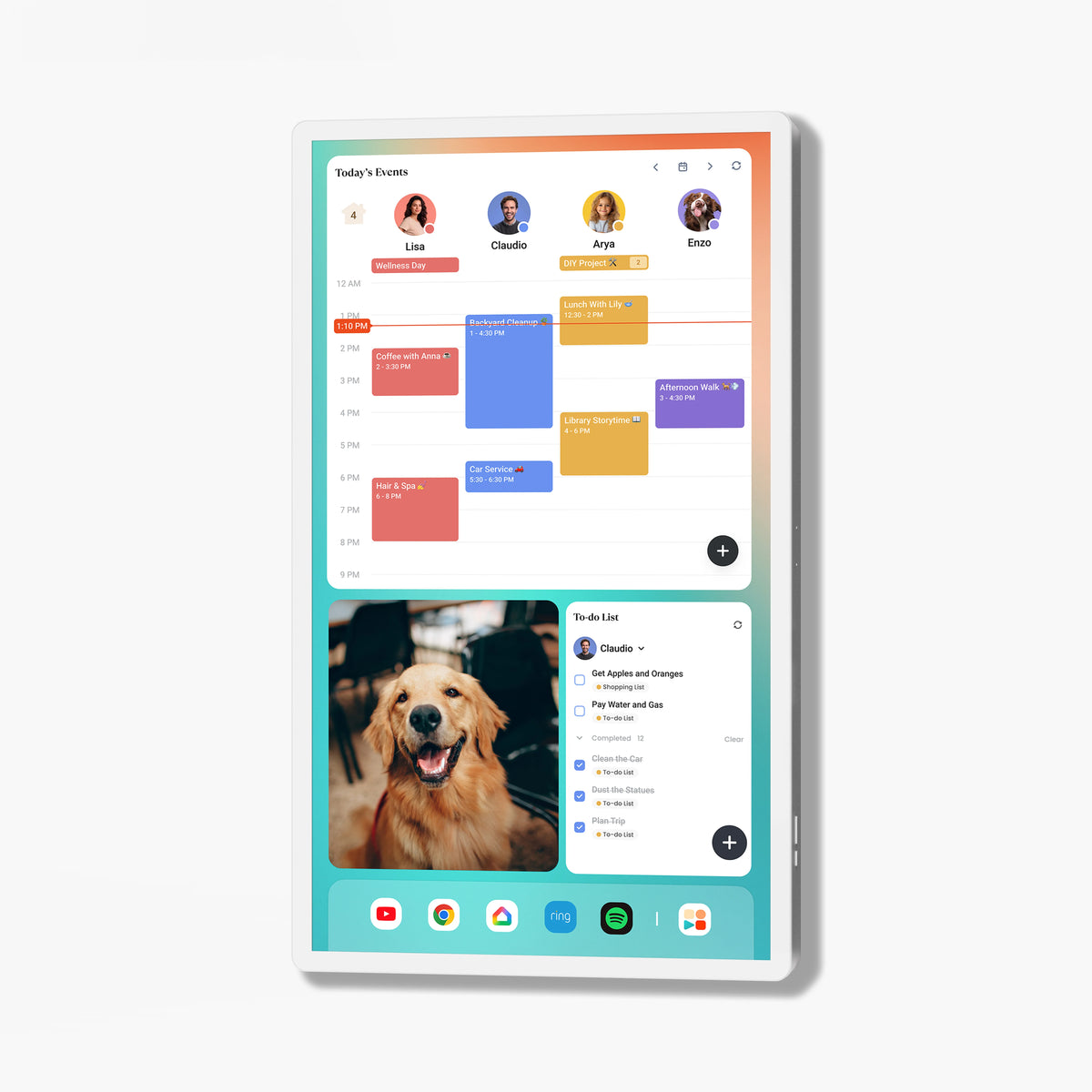
Keeping everyone's schedules easy to understand is also important. A simple color-coding system can help family members quickly identify who or what each event belongs to without reading every detail.
For example, using different colors for:
-
Each family member
-
School activities and homework
-
Sports and extracurricular activities
-
Work meetings
-
Appointments and important events
The key is to keep your system simple and consistent. Too many categories can make your calendar harder to follow, while a few clear labels can help everyone quickly understand what's happening each day.
Sync School, Work, and Personal Calendars
Connecting other calendars to bring work, school, and personal schedules together in one place.
🟠 Add Another Google Calendar
1️⃣ Open Google Calendar on your computer.
2️⃣ Click the "+" icon next to "Other calendars."
3️⃣ Select "Subscribe to calendar."
4️⃣ Enter the calendar owner's email address and request access.
Once approved, the calendar will appear alongside your own.
🟠 Connect Other Calendar Services
You can also sync calendars from other platforms:
1️⃣ Apple Calendar: Add your Google Account in your device settings and turn on Calendar sync.
2️⃣ Outlook Calendar: Import or connect your Outlook calendar with Google Calendar.
3️⃣School or activity calendars: Add shared calendars through an ICS link
A Shared Google Calendar Works Better When Everyone Can See It
A shared Google Calendar helps families stay organized, but many households still face one challenge: people may forget to check it regularly. A schedule hidden inside a phone or computer can easily be overlooked, especially by children or family members who don't manage the calendar themselves.
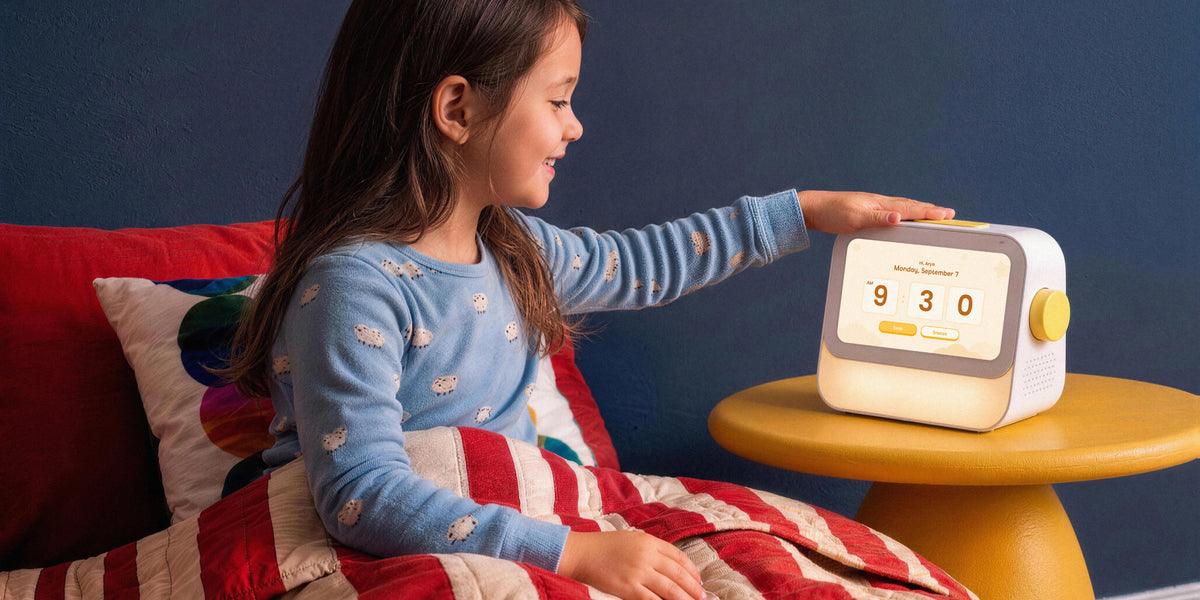
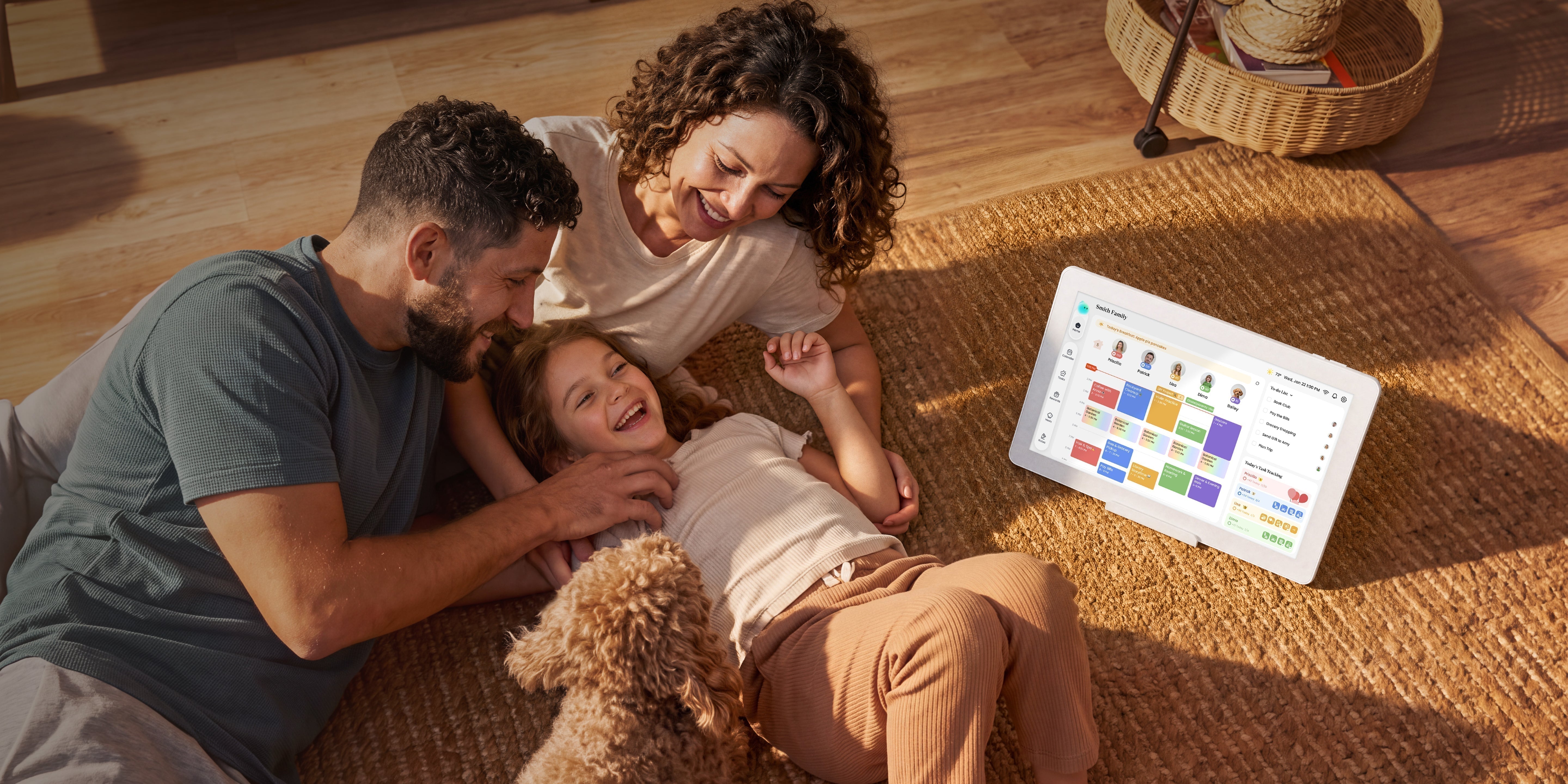
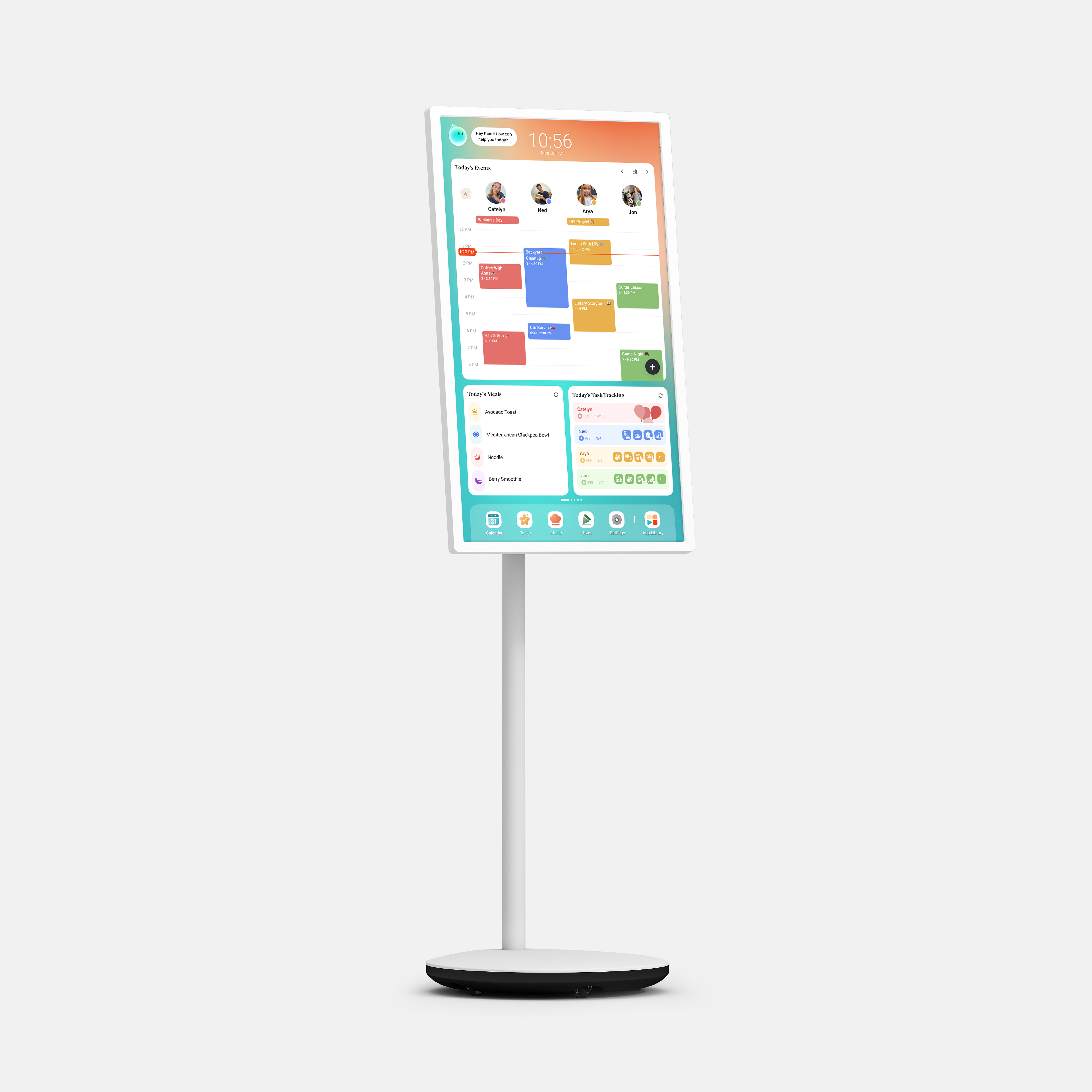
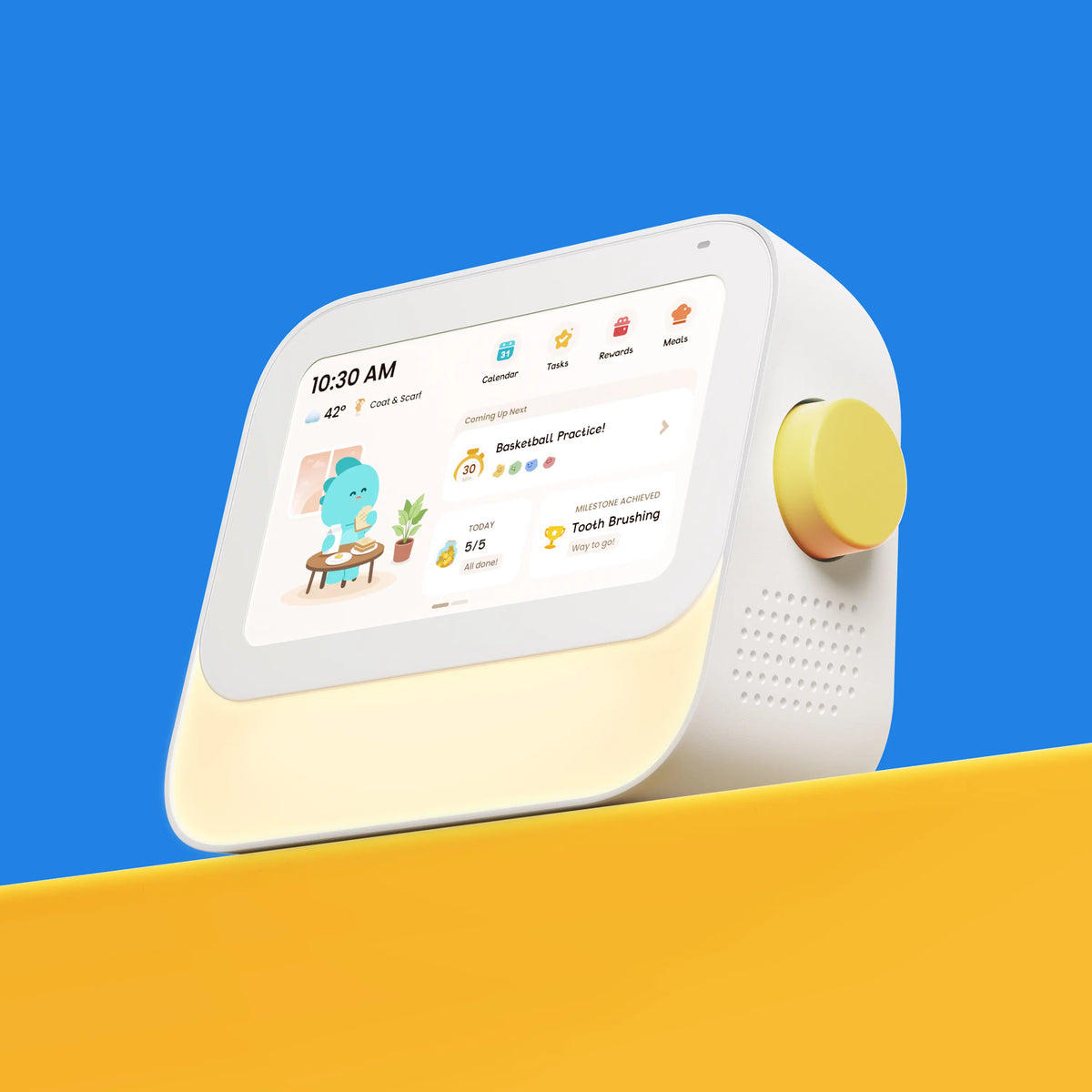
A family digital calendar display makes your shared schedule visible in a common space, such as the kitchen or living room. By syncing with Google Calendar, it allows everyone to see upcoming events, appointments, and activities without opening an app.
See schedules at a glance: Keep everyone's plans visible in one place.
Stay aware of important events: Reduce missed appointments and last-minute reminders.
Build better routines: Help children and parents understand daily plans more easily.
Rather than replacing Google Calendar, a digital calendar display extends it from a personal scheduling tool into a shared family organization system.




 United States